
BookingHub integrates seamlessly with multiple payment gateways, enabling businesses to offer secure and flexible transaction options. To activate and configure these gateways, you need to navigate to BookingHub → Settings → Payments. Below is a breakdown of the available methods and setup requirements.
Getting API Keys for Each Payment Gateway
Before you can accept payments, you need to connect BookingHub to your payment provider by entering your API keys.
Stripe
Log in to your Stripe Dashboard.
Go to Developers → API keys.
Copy your Publishable key and Secret key. (Use Test keys first, then switch to Live when ready.)
📄 Help: Stripe API Keys Guide
PayPal
Log in to the PayPal Developer Dashboard.
Go to My Apps & Credentials.
Create a new app (or open an existing one) and copy your Client ID and Secret.
📄 Help: PayPal REST API Credentials
Adding API Keys to BookingHub
Once you have your keys:
In WordPress, go to BookingHub → Settings → Payments → Payment Methods.

Scroll down to the payment gateway you want to configure (Stripe, PayPal or Local Payment).
Paste the keys into the appropriate fields (Publishable key, Secret key, Client ID, Access Token, etc.).
Save changes.
(Optional) Make a test booking to confirm everything works before switching to live mode.
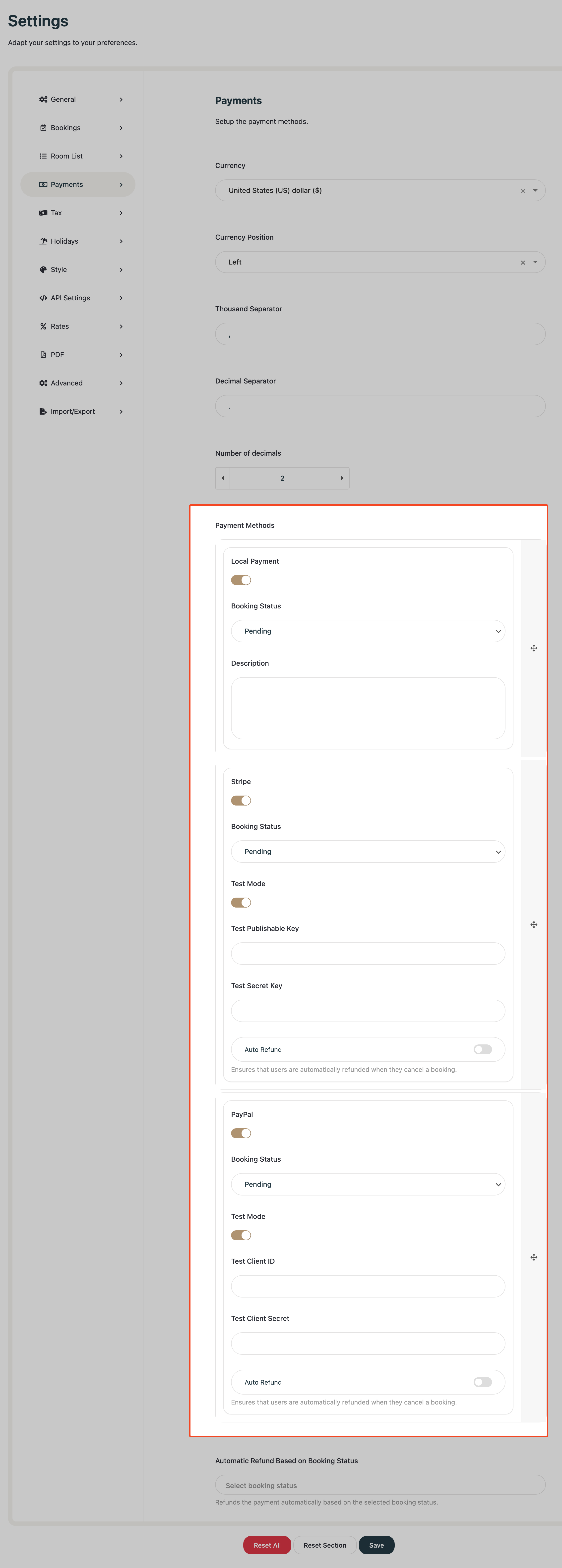
💡 Tip: Always test with Sandbox/Test keys before enabling live payments.