
Creating a Modal in Elementor (Step-by-Step Guide)
In this guide, we’ll create a modal box for a floating button as an example.
You can use the same method to add modals to any Elementor page or post.
Step 1: Create the Modal Content (Elementor Template)
First, we need to create the content that will appear inside the modal.
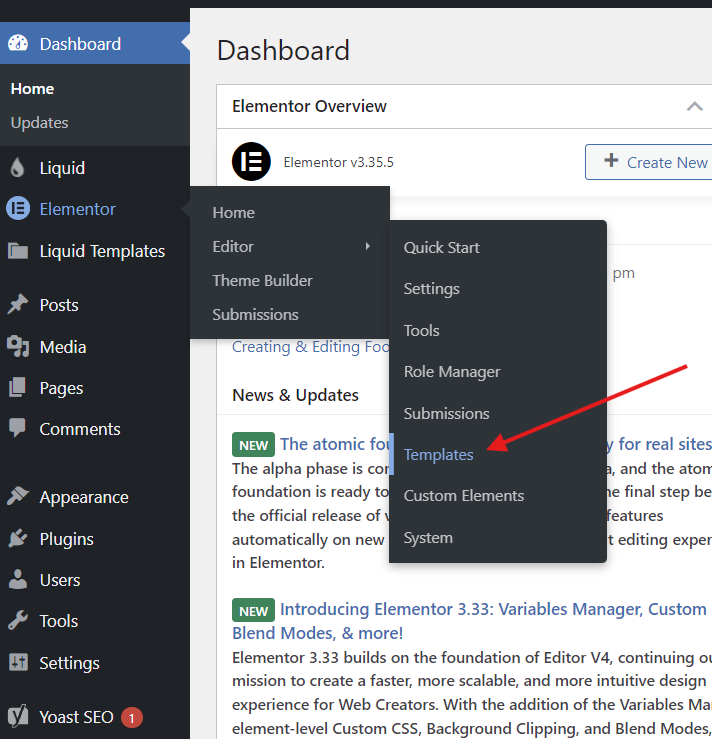
Go to Elementor → Editor → Templates from your WordPress dashboard.

Click the Add New Template button at the top right corner.
Create your layout by adding any elements you want (text, forms, images, contact info, etc.).

This layout will be the content of your modal box.
Click Save, then close the tab.
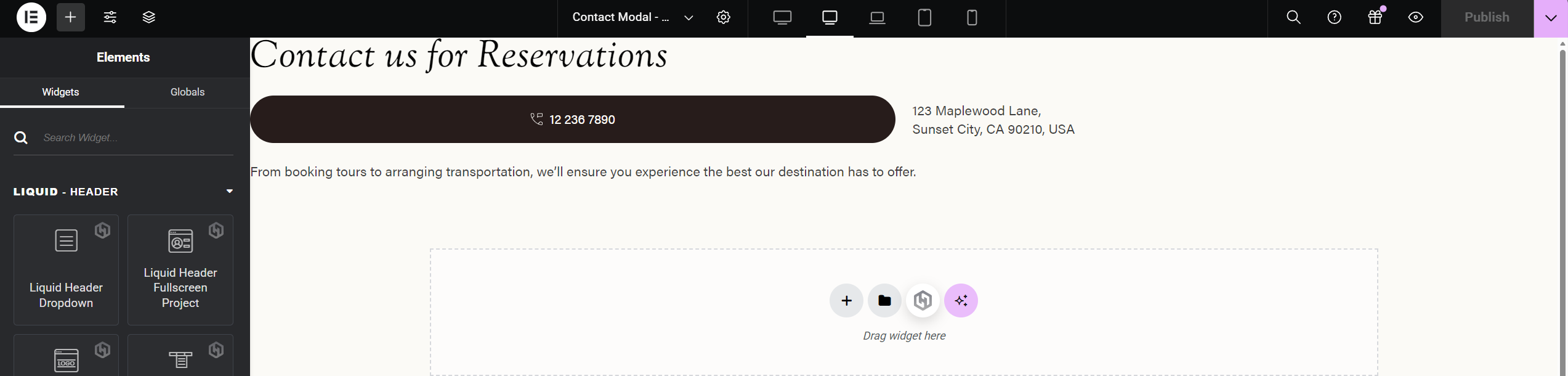
Your modal content is now ready.
Step 2: Add the Modal Box & Button to Your Page
Now we’ll connect the template to a modal and trigger it with a button.
1. Open Your Page with Elementor
Go to the page where you want to use the modal.
Click Edit with Elementor.
2. Add Required Elements
Add these two elements to your page:
Liquid Modal Box
Liquid Button
3. Configure the Liquid Modal Box
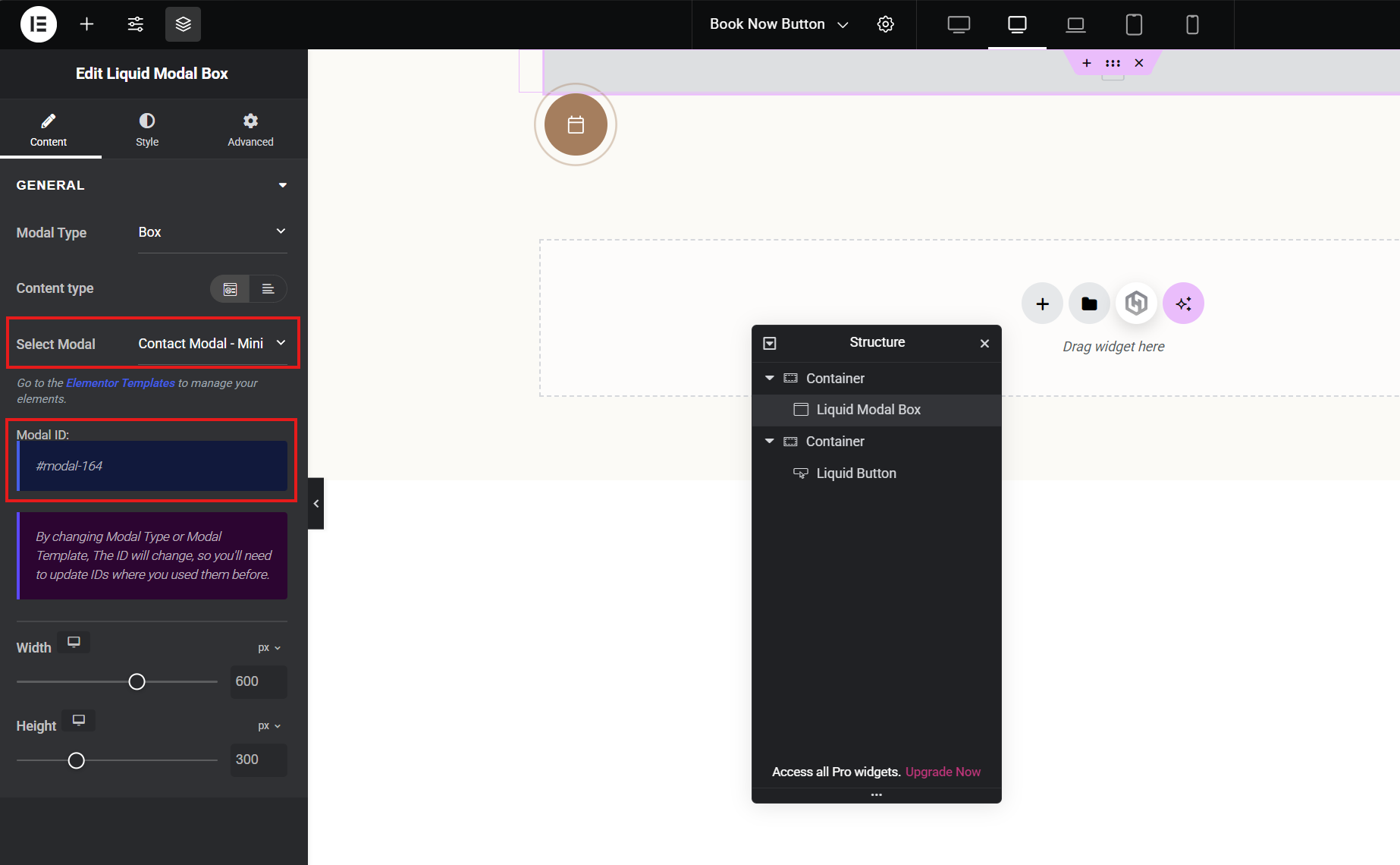
Select the Liquid Modal Box element.
Set Content Type to Elementor Template.
Use the Select Modal option to choose the template you created earlier.
Note the Modal ID (example:
#modal-164).
You will need this ID for the button.
Adjust width, height, animations, and other options according to your preference.
4. Configure the Liquid Button
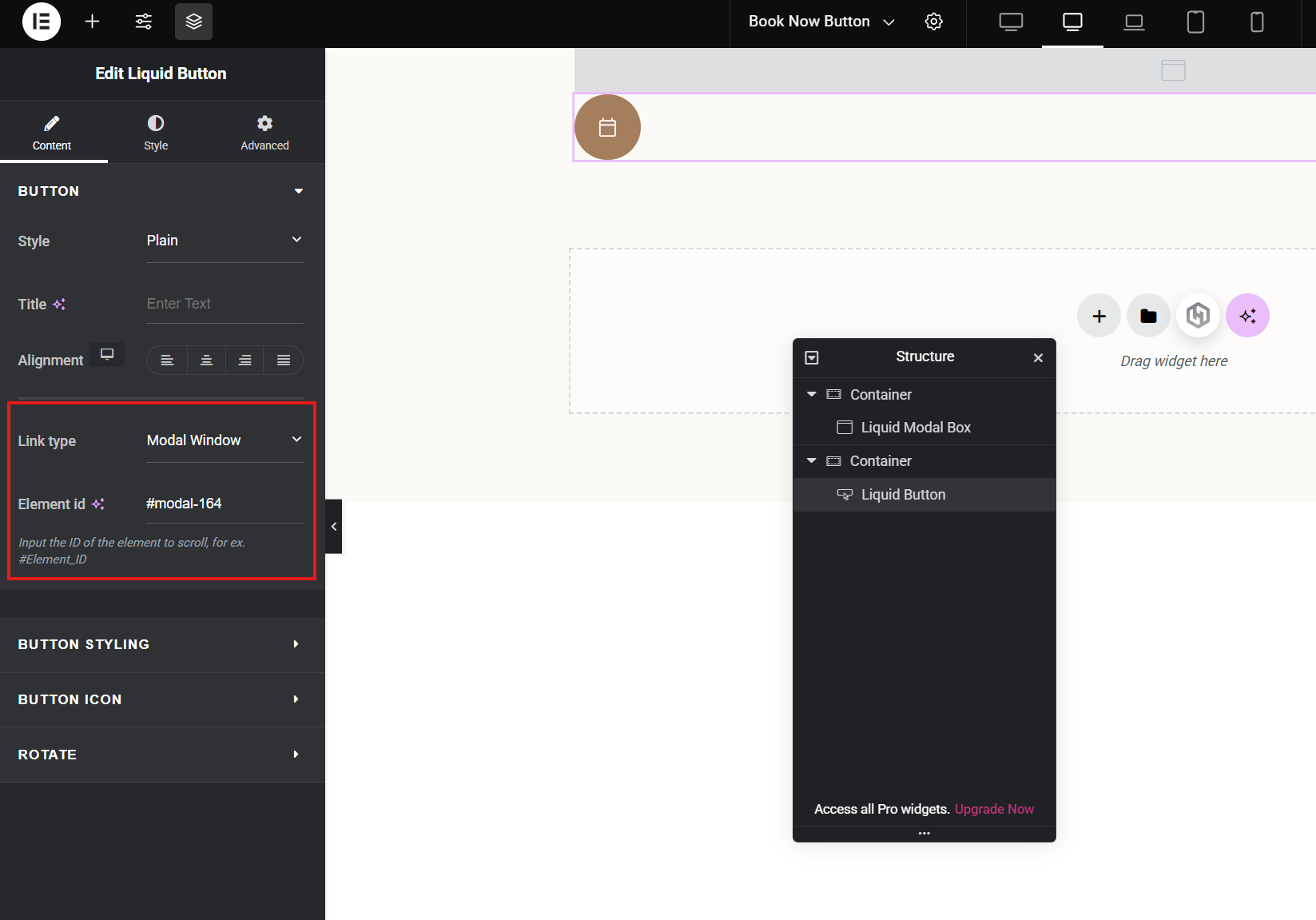
Select the Liquid Button element.
Set Link Type to Modal Window.
Paste the Modal ID you noted (e.g.
#modal-164) into the Element ID field.
That’s it.
Save the page and exit Elementor.
When you click the button, your modal box will open.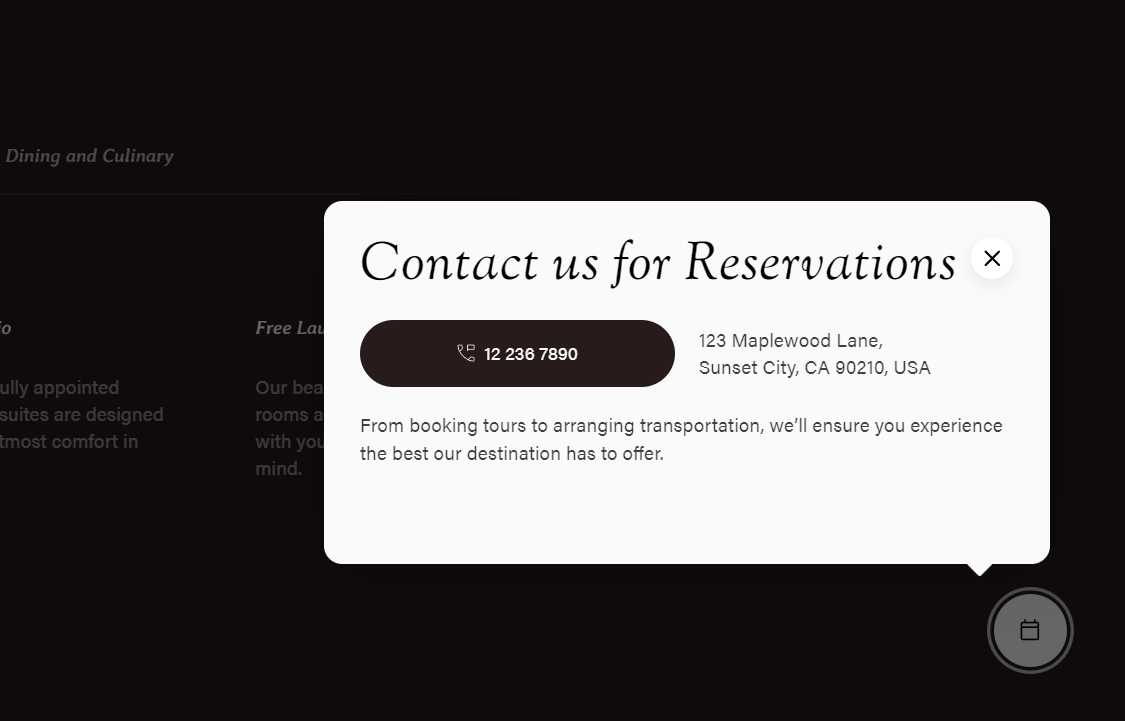
Key Notes
1. Using Multiple Buttons for the Same Modal
If you want multiple buttons on the same page to open the same modal:
You only need one Liquid Modal Box element.
Use the same Modal ID in all buttons.
2. Important: Avoid Infinite Loop
Do not use the Liquid Modal Box element inside the Elementor template that you created as modal content.
Doing so will cause an infinite loop and make the template unusable.
3. Using Modal in Header
You can follow the same steps in this article to create:
A contact modal in your header
A booking popup
Any floating action button modal
The method is always the same:
Create template → Add Liquid Modal Box → Connect with Liquid Button.