
To start using the HotelHub theme’s BookingHub plugin, you must first add at least one hotel to the system. This hotel connects your rooms, pricing rules, extras, and booking forms.
This guide explains how to add and edit a hotel step-by-step.
Step 1 — Go to Hotels Page
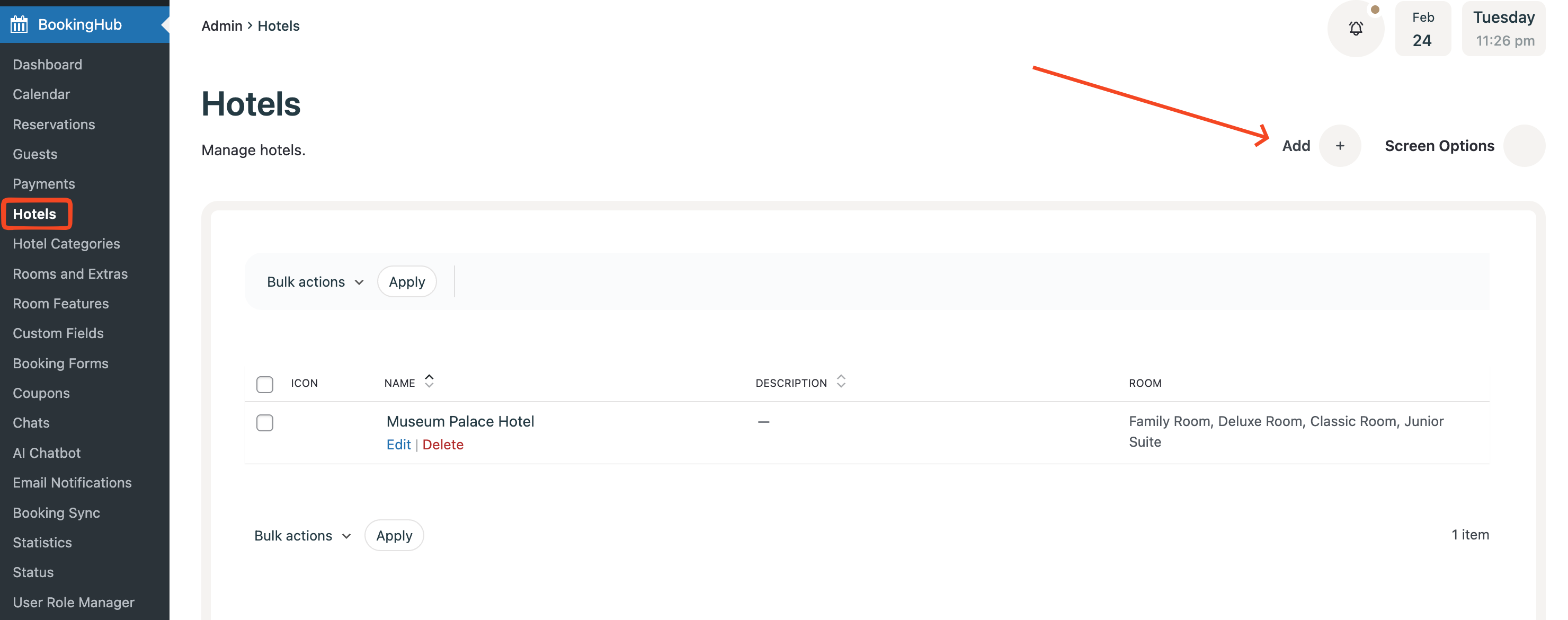
From your WordPress dashboard:
BookingHub → Hotels
Click the Add (+) button at the top right.
A modal window will open where you can configure your hotel.
Hotel Settings (Step-by-Step)
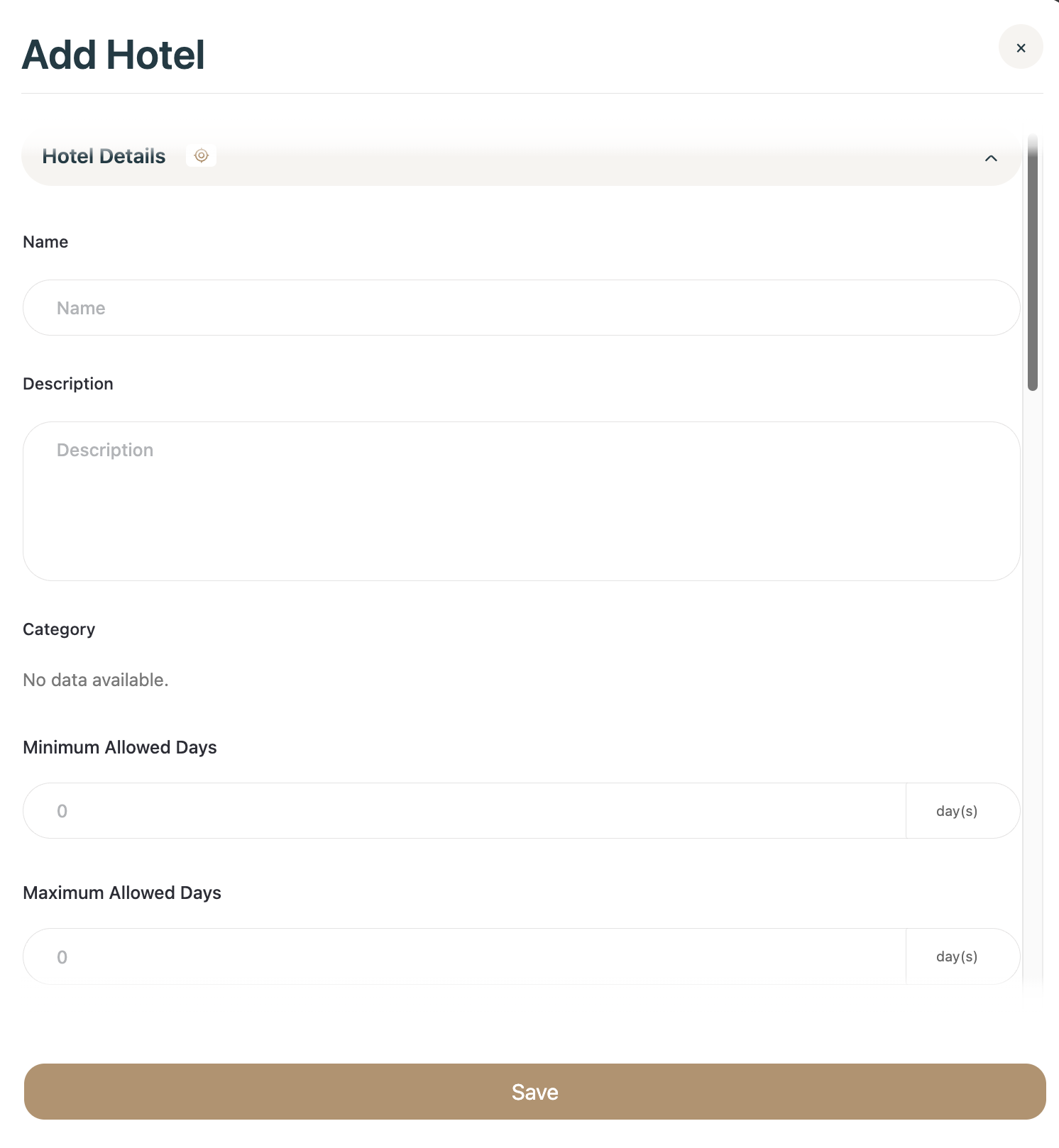
1. Hotel Name, Description & Category
Name – Enter your hotel name.
Description – Add a short description.
Category – Select a hotel category.
If you don’t have categories yet, create them from:
BookingHub → Hotel Categories
2. Minimum & Maximum Allowed Days
These settings control how long guests can stay.
Minimum Allowed Days – Minimum number of nights required.
Maximum Allowed Days – Maximum number of nights allowed per booking.
Example:
Minimum:
2Maximum:
14
Guests must book between 2 and 14 nights.
3. Allowed Booking Distance
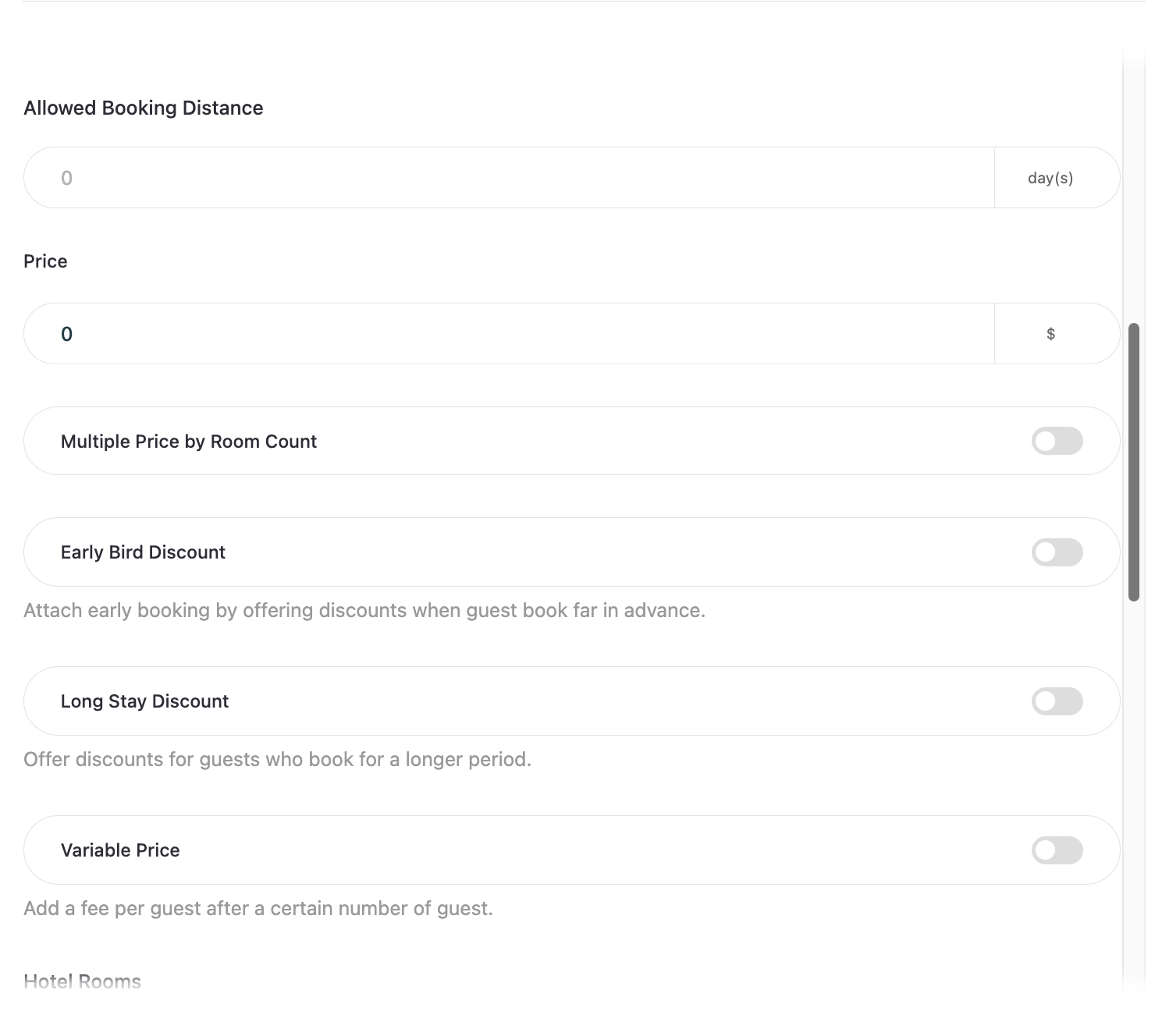
This limits how far in advance guests can make reservations.
Example:
90 days→ Guests can only book up to 90 days ahead.
4. Base Price
Enter the base price for this hotel.
This price is used unless advanced pricing options modify it.
Advanced Price Settings
BookingHub provides flexible pricing controls. You can enable each option using its toggle.
Multiple Price by Room Count
When enabled, pricing adjusts depending on the number of rooms booked.
Example:
1 Room → $100
2 Rooms → $180
Useful when offering special pricing for multiple room bookings.
Early Bird Discount
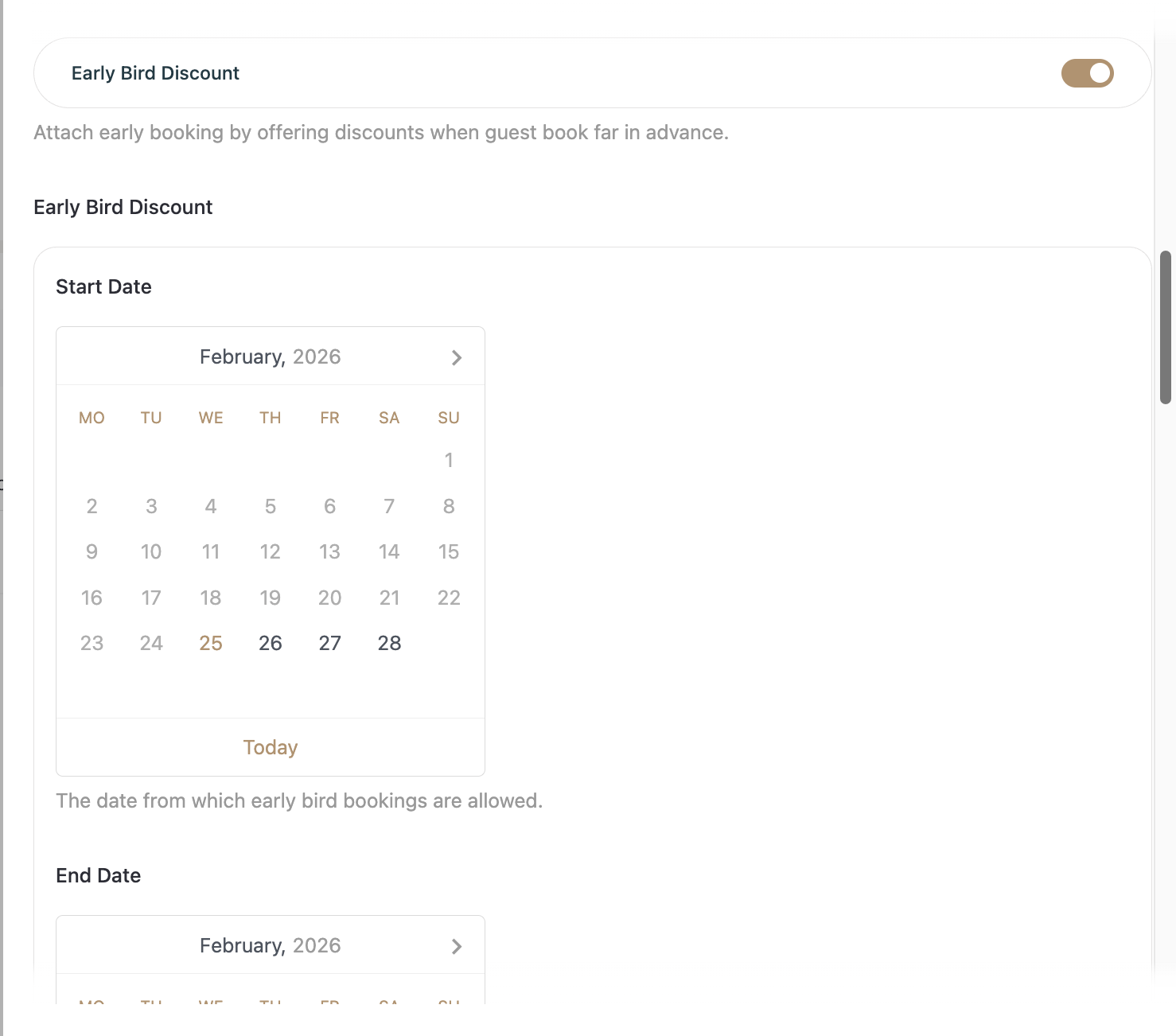
Offer a discount for guests who book in advance.
When enabled, the following options appear:
Booking Period
Controls when the booking must be made.
Start Date – The first date early bird booking is allowed.
End Date – The last date early bird booking is accepted.
Valid Stay Period
Controls when the guest must stay to qualify.
Valid Stay Period Start Date – First eligible check-in date.
Valid Stay Period End Date – Last eligible check-in date.
Discount (%)
Enter the percentage discount to apply.
Example Scenario
Booking Period: January 1 – March 31
Valid Stay Period: April 1 – June 30
Discount: 15%
Guests must book within the booking period and stay within the valid stay period to receive the discount. Both conditions must match.
Long Stay Discount
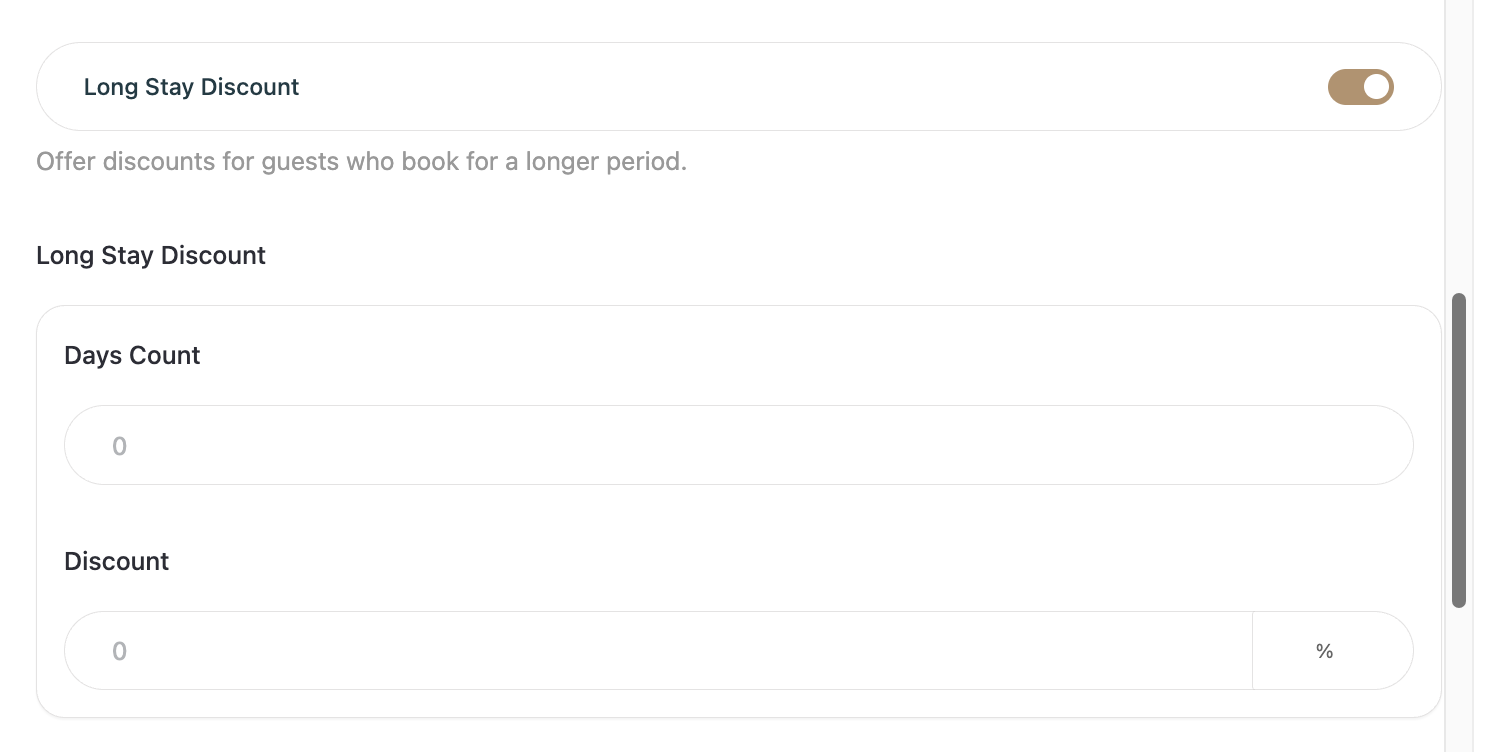
Encourage longer reservations by offering percentage discounts.
Options:
Days Count – Minimum number of nights required.
Discount (%) – Percentage discount applied.
Example:
Stay 7+ nights → 10% discount.
Variable Price
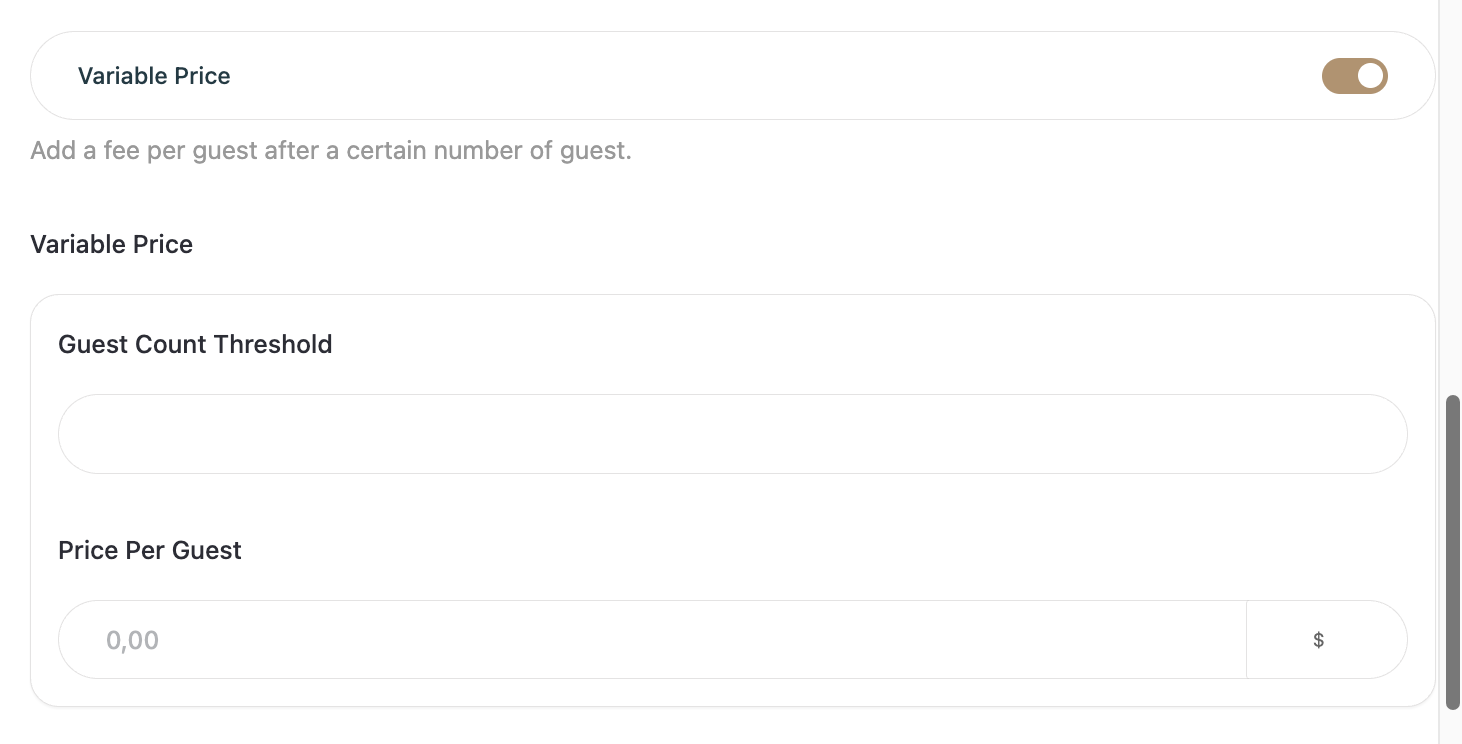
Add an additional charge per guest after a certain threshold.
Options:
Guest Count Threshold – Number of guests included in base price.
Price Per Guest – Extra charge for each additional guest.
Example:
Base price includes 2 guests.
Each extra guest → +$20.
This is useful for hotels with flexible occupancy pricing.
6. Hotel Rooms
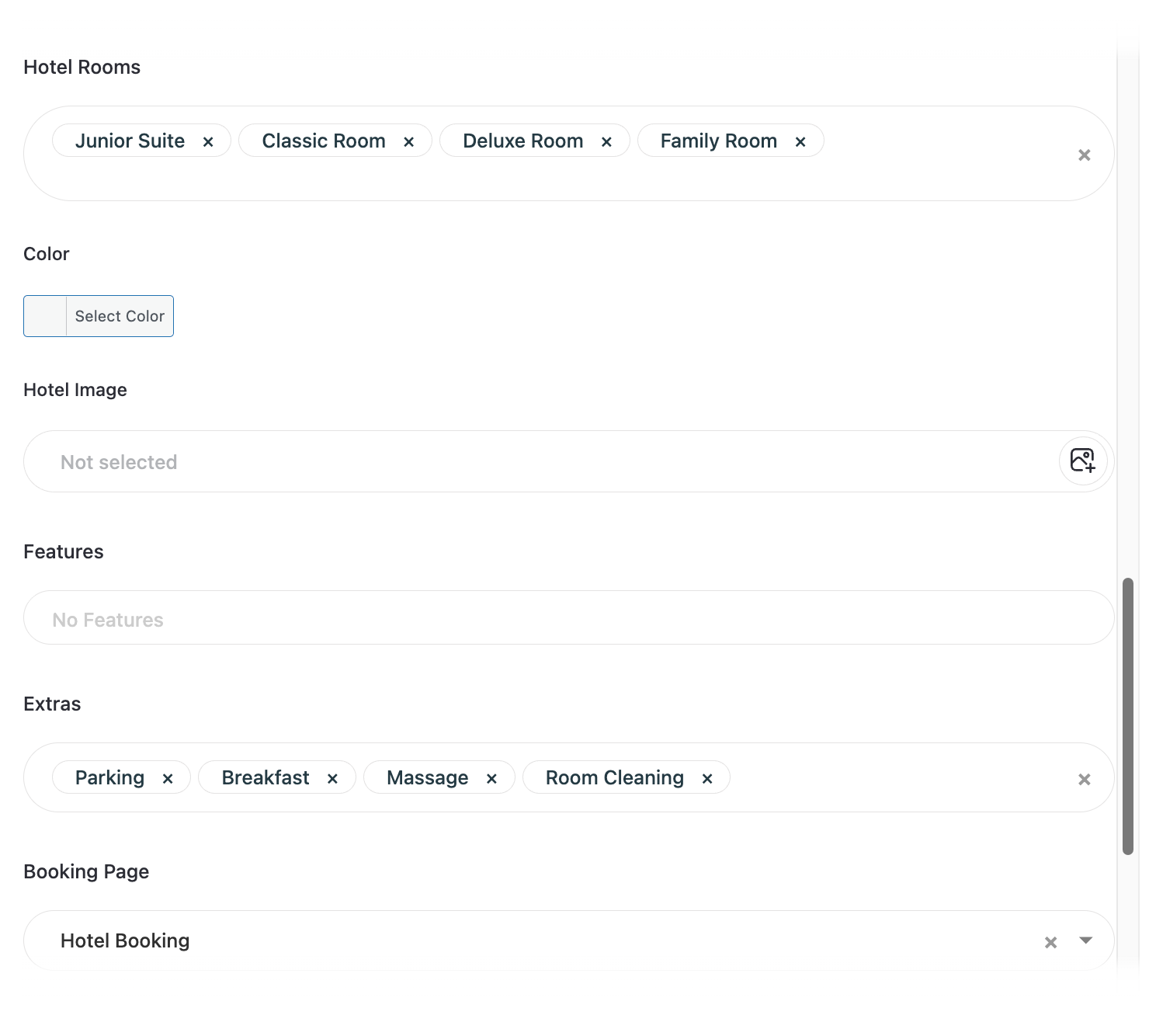
Select which rooms belong to this hotel.
If you don’t have rooms yet:
BookingHub → Rooms and Extras
Create rooms first, then return here to assign them.
7. Color
Select a color for the hotel.
This color will be used in certain booking form areas such as labels.
8. Hotel Image
Upload or select a hotel image.
This image will appear inside booking forms and listings.
9. Features & Extras
Features (WiFi, Pool, AC, etc.)
Manage from: BookingHub → Room FeaturesExtras (Breakfast, Parking, Massage, etc.)
Manage from: BookingHub → Rooms and Extras
Create them first if needed, then assign them to the hotel.
10. Booking Page
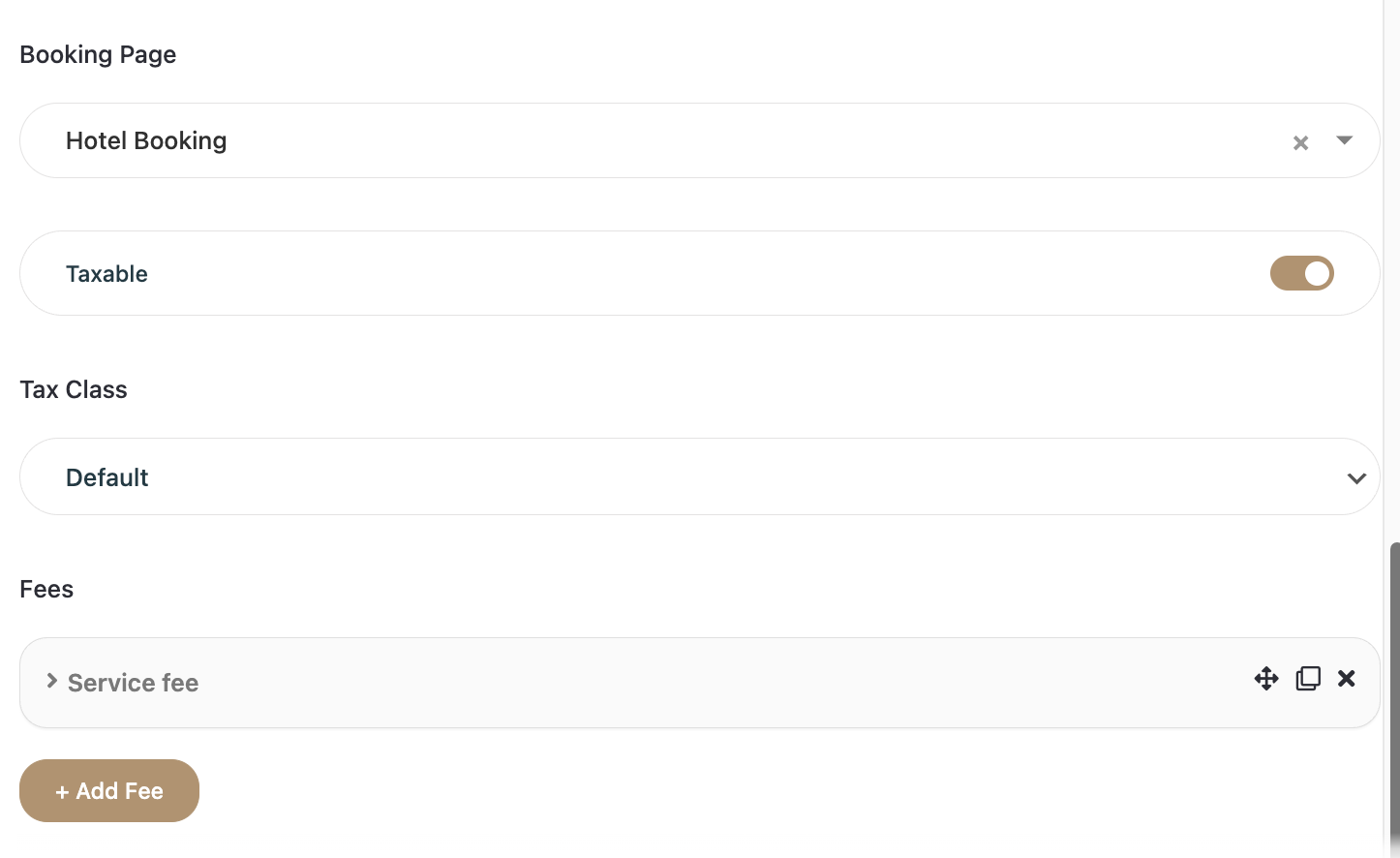
Select the page that contains your booking form.
This page is used for redirection and booking actions.
Make sure you select your actual booking page.
11. Taxable & Tax Class
Enable Taxable if taxes apply.
Select a Tax Class
Tax classes can be created from BookingHub settings.
If taxes are not required, leave this disabled.
12. Fees
Add custom fees specific to this hotel.
Examples:
Service fee
Cleaning fee
Seasonal surcharge
Click + Add Fee to create one.
These fees are automatically included in booking calculations.
Save Your Hotel
After completing all settings, click Save.
Your hotel is now added to the system.
Important: Connect Hotel to Booking Form
After creating your hotel:
Go to your Booking Form settings and select the hotel you just created.
If you don’t select the hotel in your form settings, the hotel and its rooms will not appear in the booking form.
Editing an Existing Hotel
To edit a hotel:
Go to BookingHub → Hotels
Click Edit
Update your settings
Click Save
Changes will immediately reflect in your booking forms.
Your hotel is now fully configured and ready to accept bookings.