
With HotelHub, you can easily create and manage hotel rooms and service extras (such as breakfast, parking, spa, etc.) directly from your WordPress dashboard.
This guide walks you through the process step-by-step.
📍 Step 1: Go to Rooms and Extras
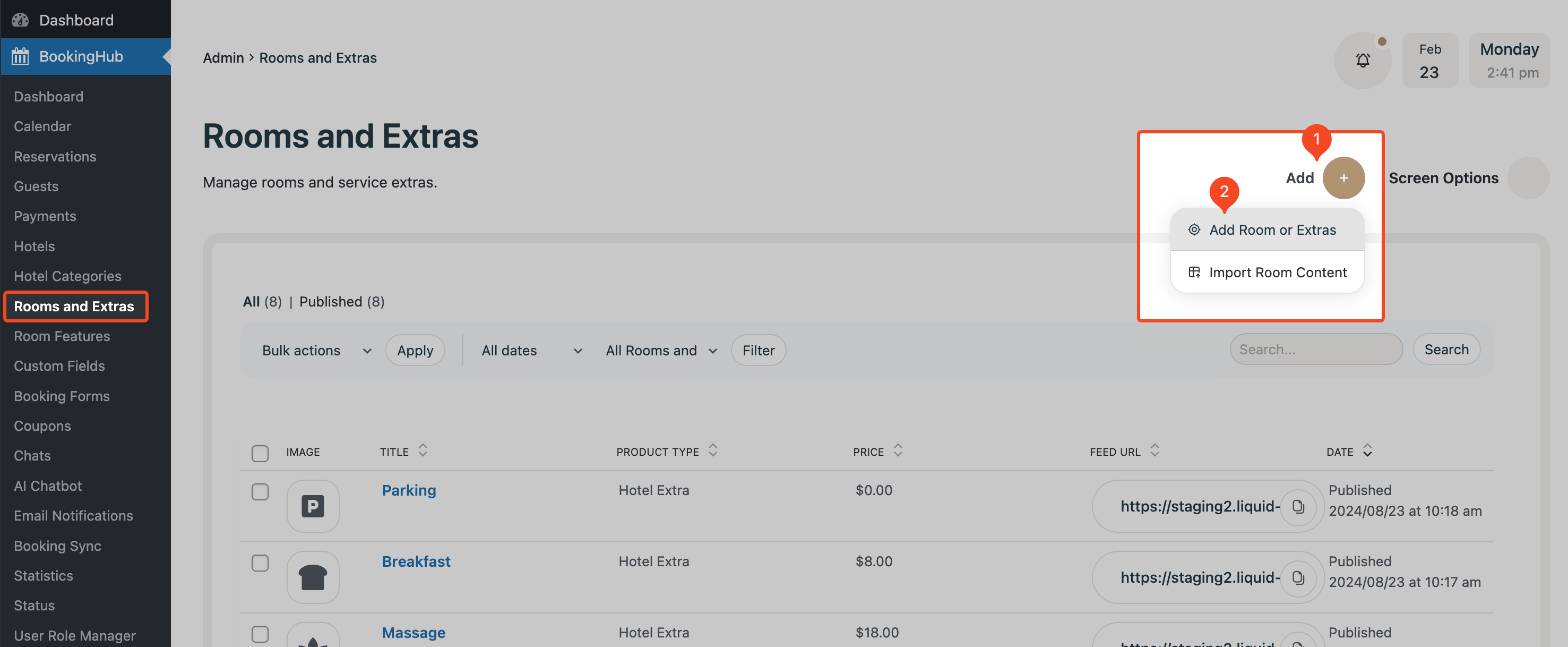
Log in to your WordPress dashboard.
Navigate to BookingHub → Rooms and Extras
Click the Add (+) button.
Select Add Room or Extras.
A new Gutenberg editor page will open.
📝 Step 2: Add Title & Select Product Type
At the top of the page:
Enter the name of your Room or Extra in the Title field.
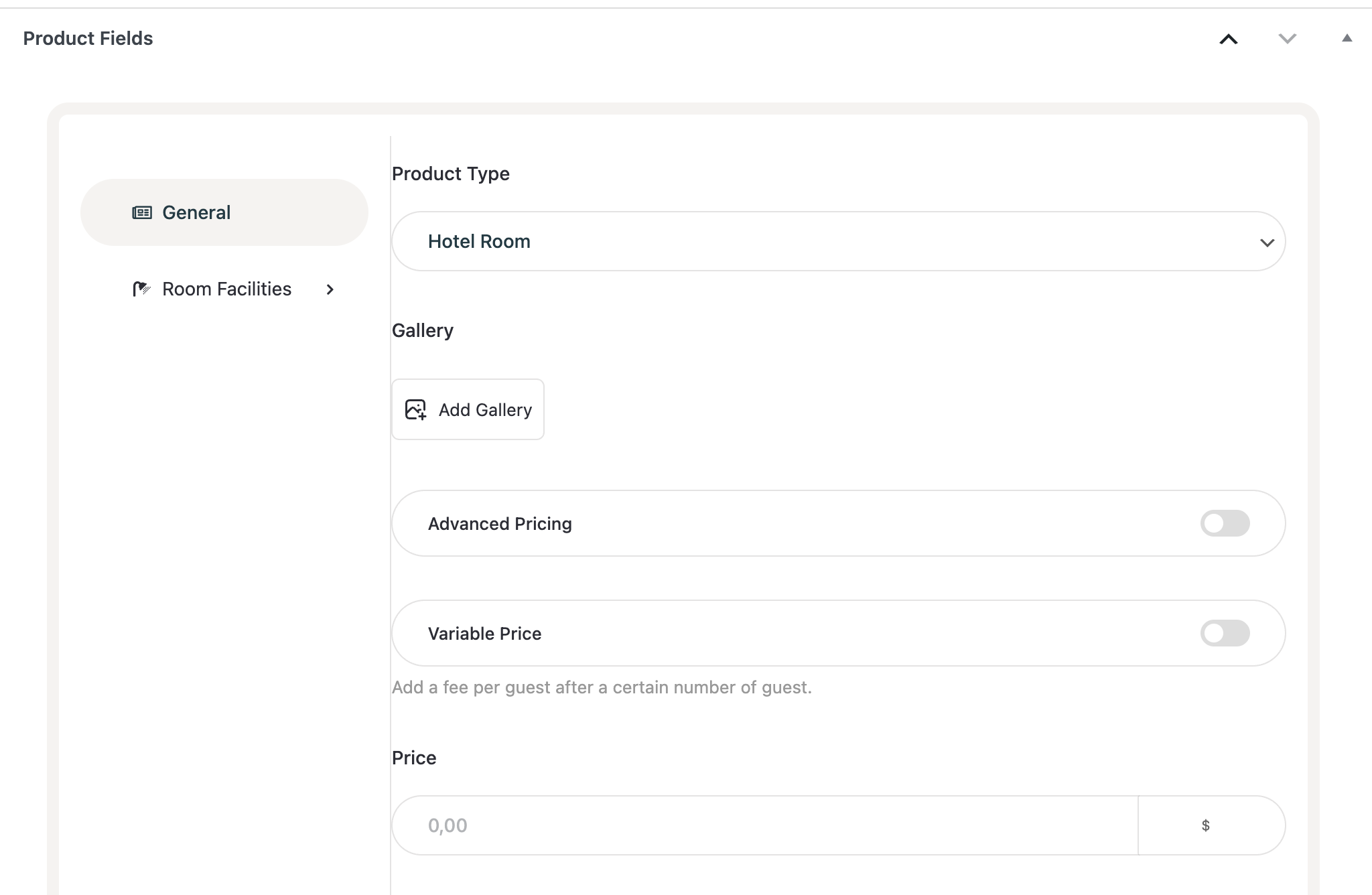
Scroll down to the Product Fields section.
Here you will find:
🔘 Product Type
Choose one of the following:
Hotel Room
Hotel Extra
Select the appropriate type before continuing.
➕ Adding an Extra
Extras are additional services such as Breakfast, Parking, Spa, Airport Transfer, etc.
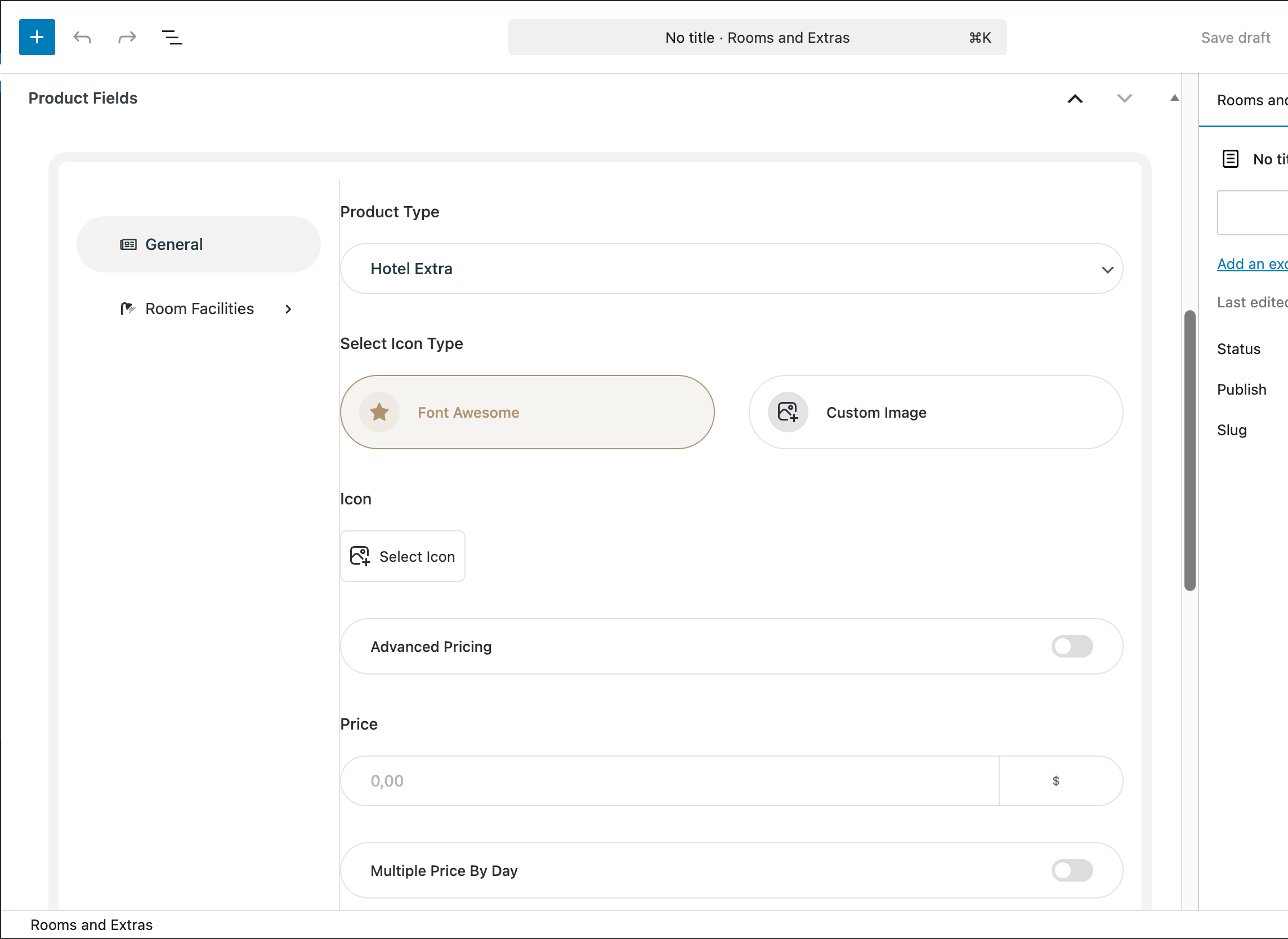
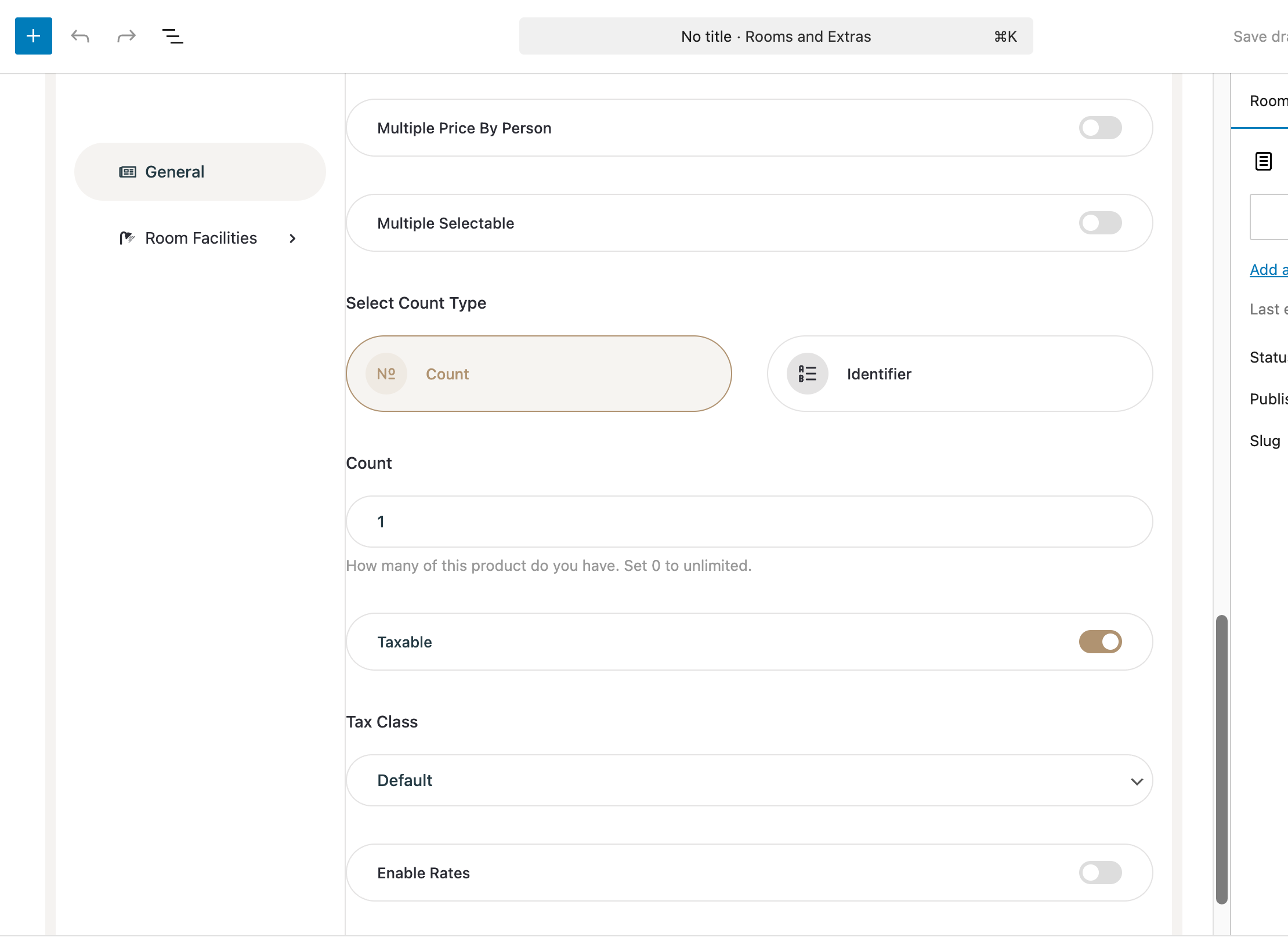
Extras are additional services such as Breakfast, Parking, Spa, Airport Transfer, etc.
1️⃣ Select Icon or Image
Choose how the extra will be displayed:
Select a Font Awesome icon
Or upload a Custom Image
This will appear on the booking form and listing page.
2️⃣ Advanced Pricing (Optional)
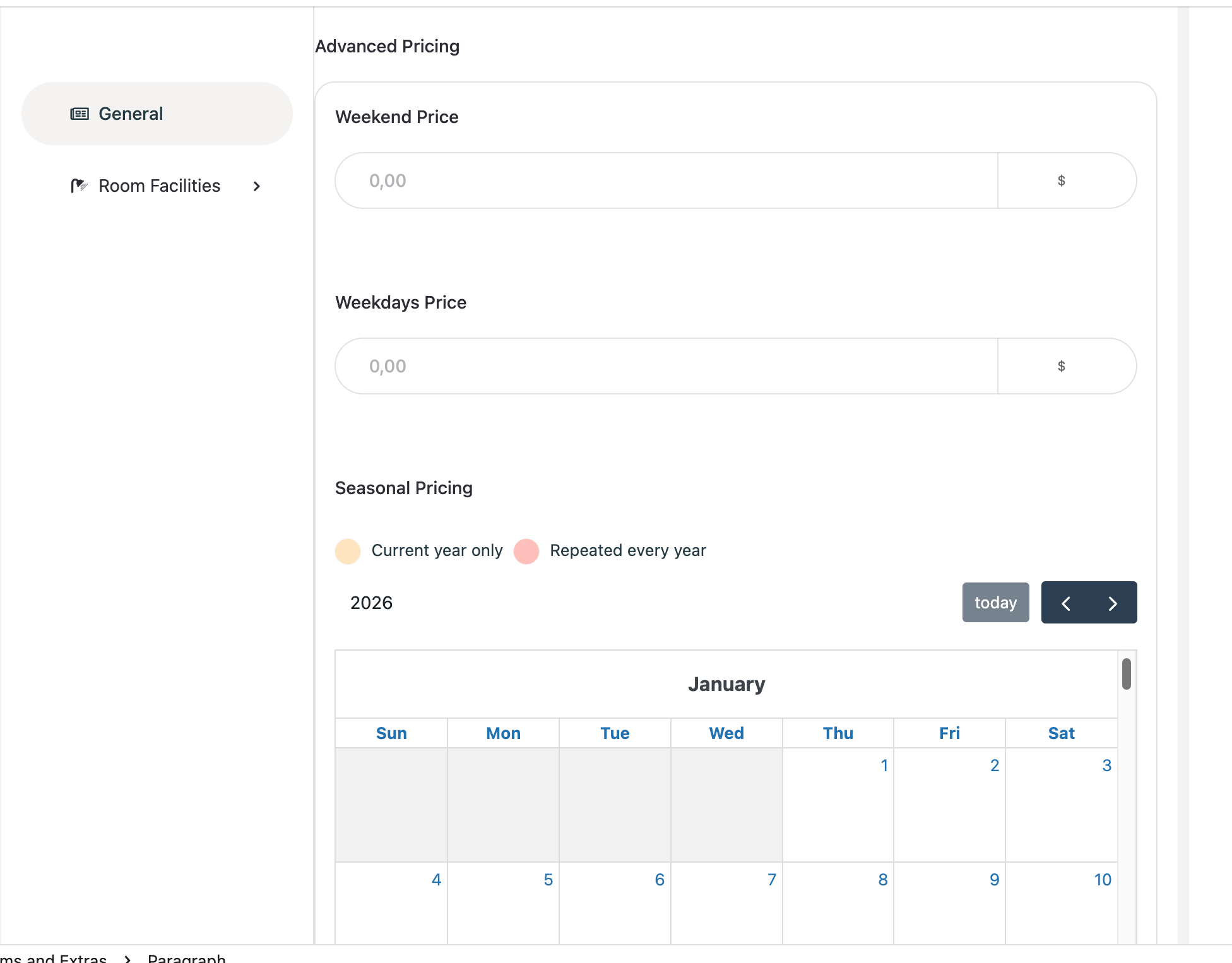
Enable Advanced Pricing to:
Set different prices for Weekdays
Set different prices for Weekends
Define custom seasonal prices using the calendar
Apply pricing for the current year only or repeat yearly
This is ideal for seasonal or date-based services.
3️⃣ Set the Base Price
Enter the base price for the extra in the Price field.
4️⃣ Multiple Price By Day (Optional)
Enable Multiple Price By Day if the extra price should be calculated per day of stay.
Example:
Breakfast: $10 per day
Parking: $15 per day
If a guest stays 3 nights, the system will multiply the price by 3 automatically.
5️⃣ Multiple Price By Person (Optional)
Enable Multiple Price By Person if the extra should be charged per guest.
Example:
Breakfast: $8 per person
Airport transfer: $20 per person
If 3 guests book the room, the price will be calculated accordingly.
6️⃣ Multiple Selectable (Optional)
Enable Multiple Selectable to allow guests to select the same extra multiple times.
Example:
Extra Bed × 2
Spa Session × 3
7️⃣ Count
Define availability:
Enter how many of this extra you have available.
Enter 0 for unlimited.
You can also use the Identifier option to assign unique IDs.
Example:
Parking Spot #1
Bike Rental #3
8️⃣ Tax Settings
Enable Taxable if needed.
Select a Tax Class
Taxes can be managed globally from:
BookingHub → Settings → Taxes
9️⃣ Rates
Assign applicable rates to this extra.
⚠️ Make sure you create global rates first from:
BookingHub → Settings → Rates🏨 Adding a Room
Rooms include full accommodation units available for booking.
1️⃣ Add Gallery Images
Upload high-quality images of the room using the Gallery option.
These images will appear on the room listing and detail page.
2️⃣ Advanced Pricing (Optional)
Enable Advanced Pricing to:
Set weekday/weekend pricing
Set seasonal pricing
Use the calendar for date-based rates
3️⃣ Variable Price (Optional)
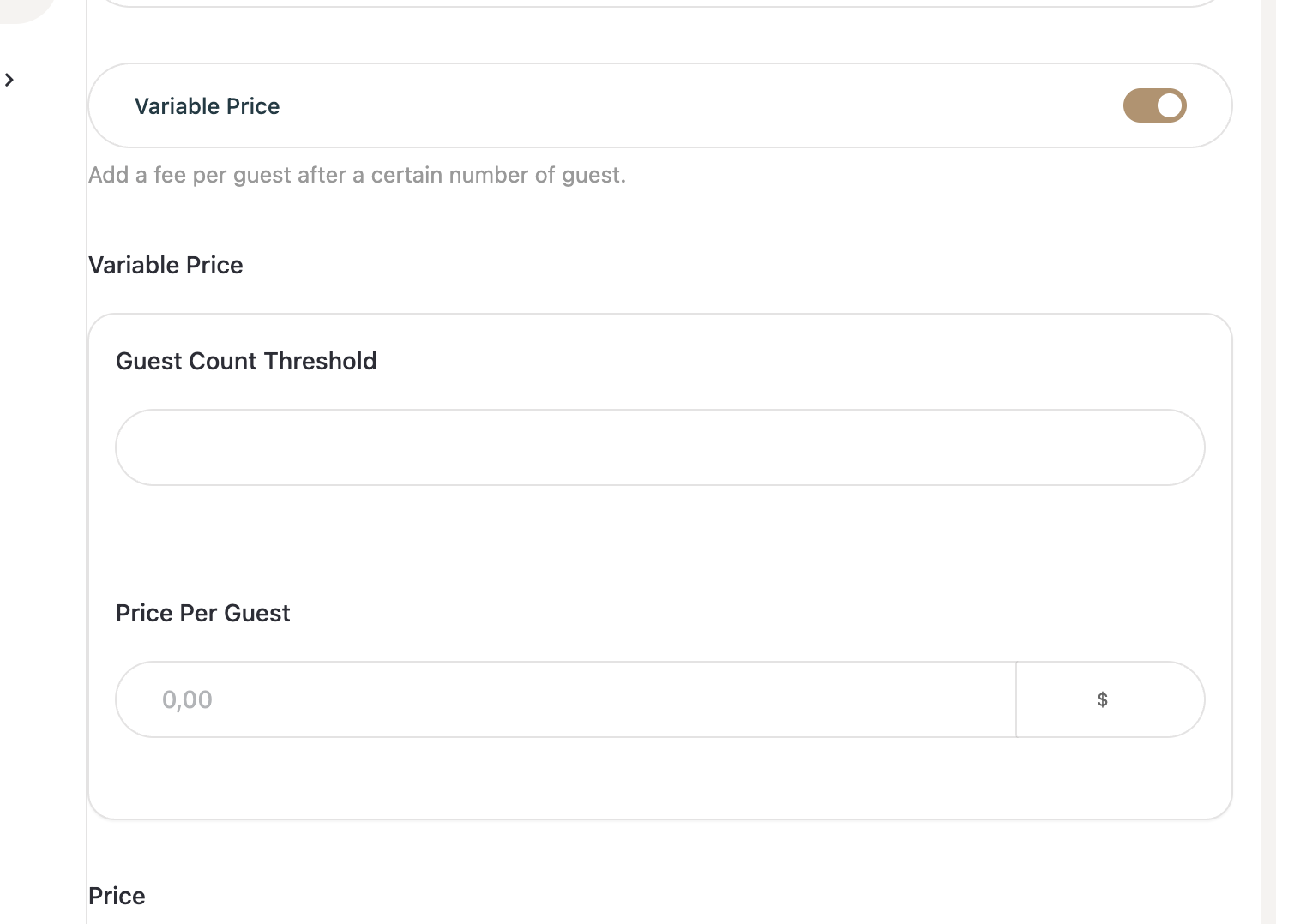
Enable Variable Price to:
Add a fee per guest after a specific guest threshold.
Example:
Base price includes 2 guests
Extra $20 per additional guest
4️⃣ Set Room Price
Enter the base price of the room.
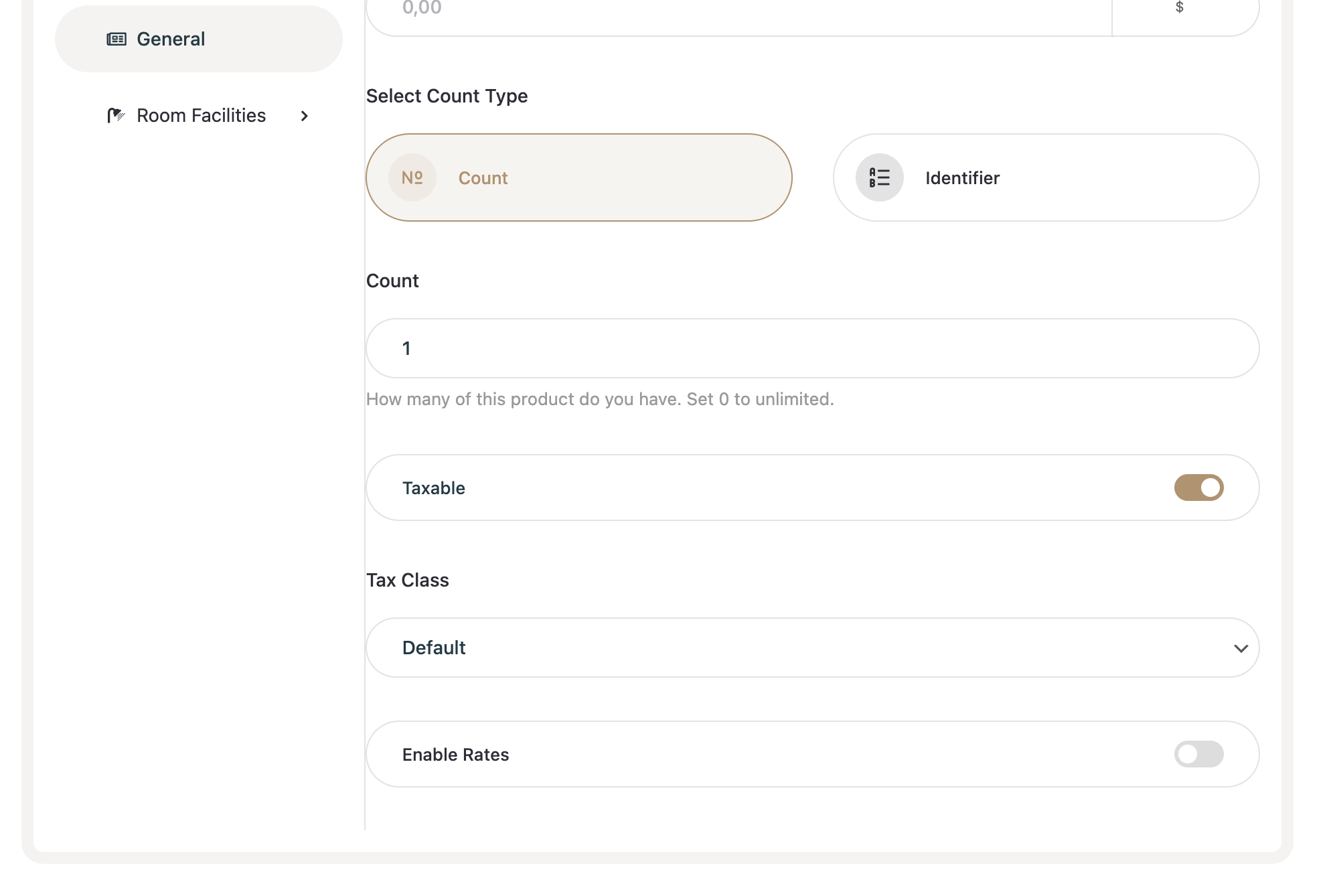
5️⃣ Count
Define how many rooms are available:
Enter total number of rooms
Enter 0 for unlimited
Use Identifier to assign room numbers
Example:
Room 101
Room 102
Room 201
6️⃣ Tax Settings
Enable Taxable if required and choose a tax class.
7️⃣ Rates
Assign applicable rates to this room.
Remember to create global rates first from BookingHub settings.
🛏 Room Facilities Tab
Switch to the Room Facilities tab to define room specifications.
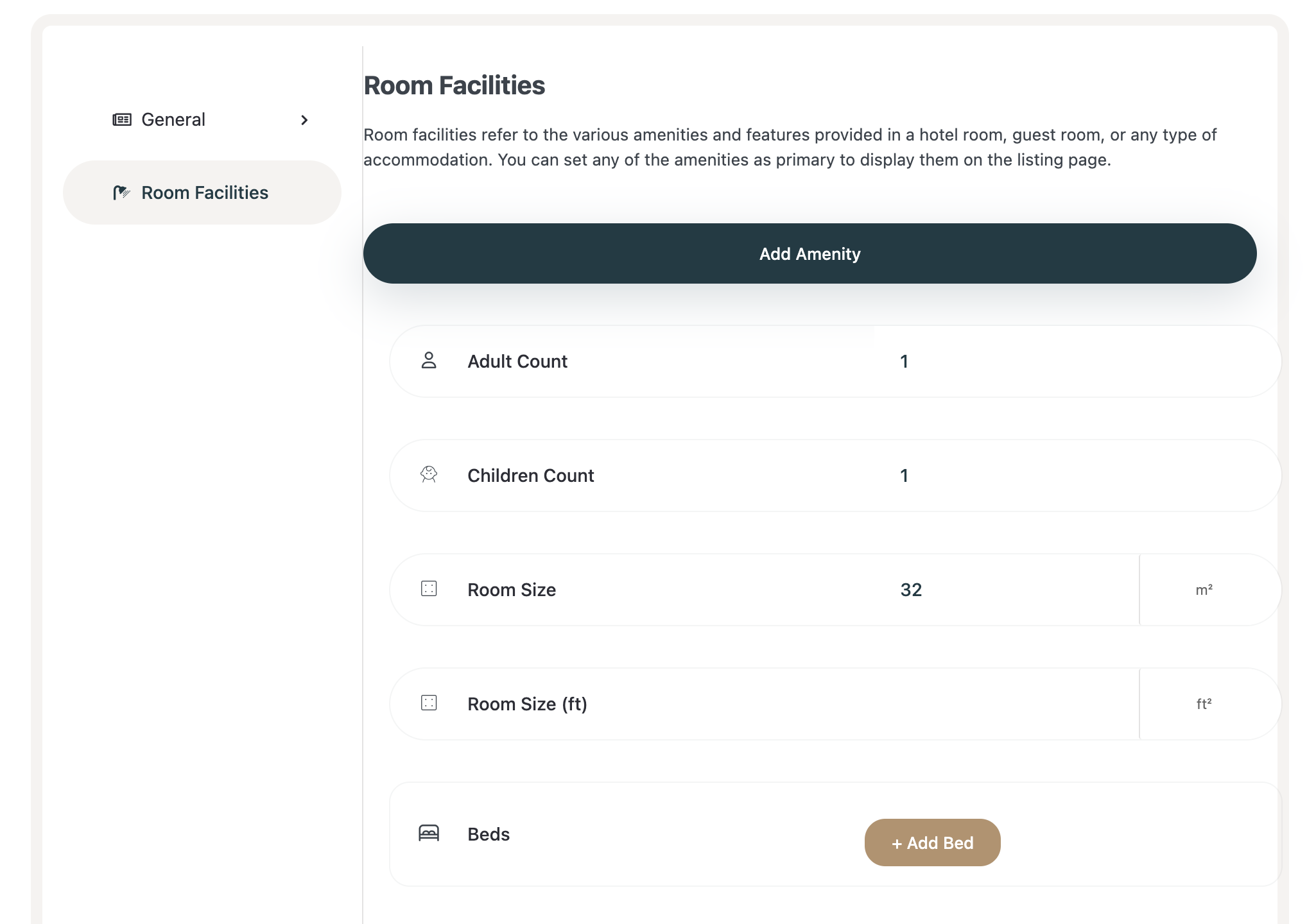
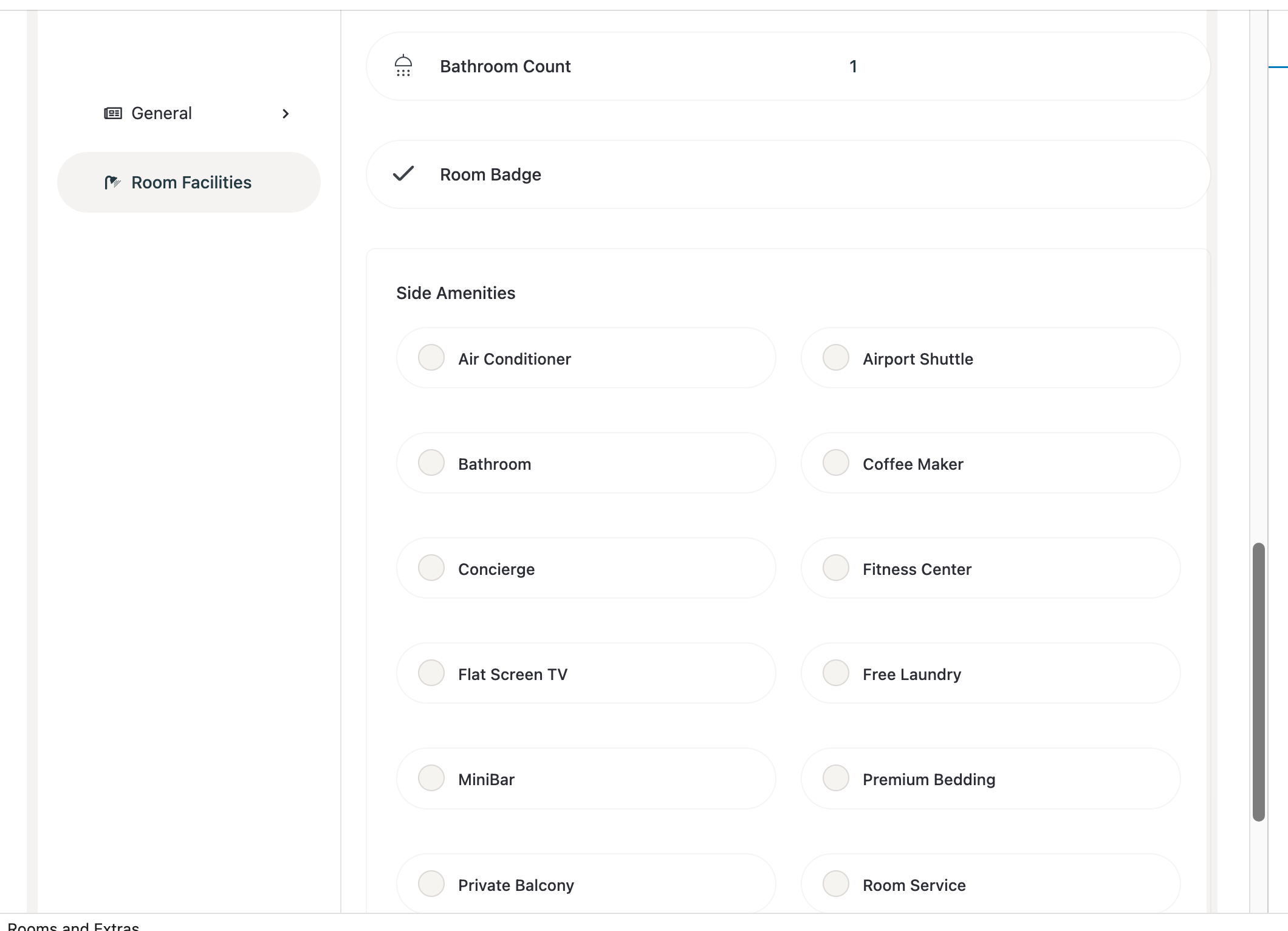
Adult Count
Define how many adults can stay in this room.
Children Count
Define how many children can stay.
Room Size
Enter room size (m² or ft²).
Beds
Add number and type of beds.
Bathroom Count
Define number of bathrooms.
Side Amenities
Select the features you added.
You can also create new amenities using the Add Amenity button at the top.
After completing all fields:
Click Save (or Publish)
🔗 Assign Rooms & Extras to Your Hotel (Important)
After creating a Room or Extra, it will NOT automatically appear in your booking forms.
You must assign it to your hotel first.
📍 Step 1: Go to Hotels
From your WordPress dashboard, navigate to:
BookingHub → Hotels
✏️ Step 2: Edit Your Hotel
Find your hotel in the list.
Click the Edit button.
🏨 Step 3: Assign Rooms & Extras
Inside the hotel settings:
Locate the Rooms section.
Select the newly created Rooms.
Locate the Extras section.
Select the newly created Extras.
💾 Step 4: Save
Click Update / Save.
⚠️ Important Note
If you do not assign Rooms or Extras to a Hotel:
They will not appear in booking forms.
Guests will not be able to select them.
They will remain inactive in the booking system.
Once assigned and saved, your rooms and extras will be available for booking 🎉