
The Form Wizard allows you to quickly create a booking form by following a guided 5-step setup process. It is ideal if you want a structured and fast way to generate booking forms without designing everything manually.
💡 Note: If you are using Elementor, you can skip the Form Wizard entirely and use the Room Booking Form Elementor element instead (see Alternative Method section below).
How to Create a Booking Form (Using Form Wizard)
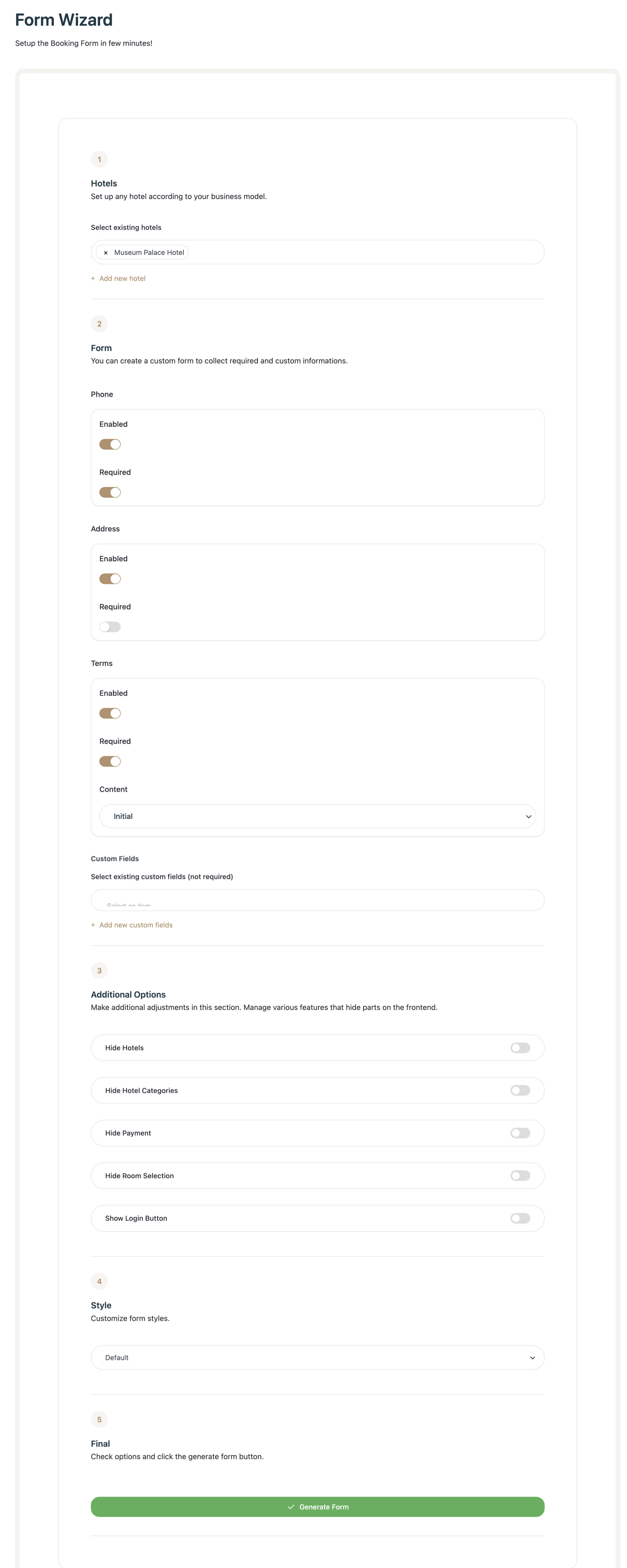
Step 1 — Hotels
Choose which hotels this booking form will be connected to.
Under Select existing hotels, choose one or multiple hotels.
If needed, click + Add new hotel to create a new one.
Tip: If the form is only for one property, selecting a single hotel keeps the form cleaner.
Step 2 — Form Fields
Configure which guest information fields appear and whether they are required.
Phone
Enabled — Show the phone field.
Required — Make phone mandatory.
Address
Enabled — Show the address field.
Required — Make address mandatory.
Terms
Enabled — Show terms & conditions checkbox.
Required — Force guests to accept before proceeding.
Content — Select which saved terms content to display.
Custom Fields
You can collect additional information:
Select from existing custom fields.
Click + Add new custom fields to create new ones.
Step 3 — Additional Options
Control visibility of frontend booking sections:
Hide Hotels
Hide Hotel Categories
Hide Payment
Hide Room Selection
Show Login Button
These options allow you to simplify or customize the booking flow depending on your business model.
Step 4 — Style
Select a visual preset for the form:
Open the Style dropdown.
Choose a style (e.g., Default).
Step 5 — Generate the Form
After reviewing your settings:
Click Generate Form.
Your form will appear in the Booking Forms page.
How to Add the Generated Form to a Page
Once created, you can insert the form into your website in two ways:
Option 1 — Using Shortcode
Go to Booking Forms.
Copy the generated shortcode.
Paste it into any page, post, or widget.
Works with:
Classic Editor
Gutenberg
Any theme supporting shortcodes
Option 2 — Using the “Booking Forms” Elementor Element
Edit a page with Elementor.
Drag the Booking Forms element.
Select your generated form from the dropdown.
This is ideal if you want to use the Form Wizard but place the form visually with Elementor.
Alternative Method — Using the “Room Booking Form” Elementor Element
If you are using Elementor, you do not need to use the Form Wizard at all.
The Room Booking Form Elementor element allows you to:
Create a booking form directly inside Elementor
Fully customize layout and structure
Adjust styling in detail
Control sections visually
Build advanced booking page designs
This method is recommended if:
You prefer full visual control
You are building a highly customized booking page
You want deeper styling and layout flexibility
You want to manage everything inside Elementor
Which Method Should You Use?
| Use Case | Recommended Method |
|---|---|
| Quick setup | Form Wizard |
| Simple booking widget | Form Wizard + Shortcode |
| Elementor page with predefined form | Booking Forms Elementor Element |
| Fully custom booking design | Room Booking Form Elementor Element |
Summary
You have two ways to create booking forms:
Form Wizard — Fast, guided setup.
Room Booking Form (Elementor) — Advanced, fully customizable alternative.
Choose the workflow that best fits your design and flexibility needs.