
Starting your design process with a prebuilt website is faster and easier. However, you can start from scratch depending on your requirements.
Go to your WordPress dashboard, then navigate to Liquid > Setup Wizard.
After the activation step, you need to install the required plugins.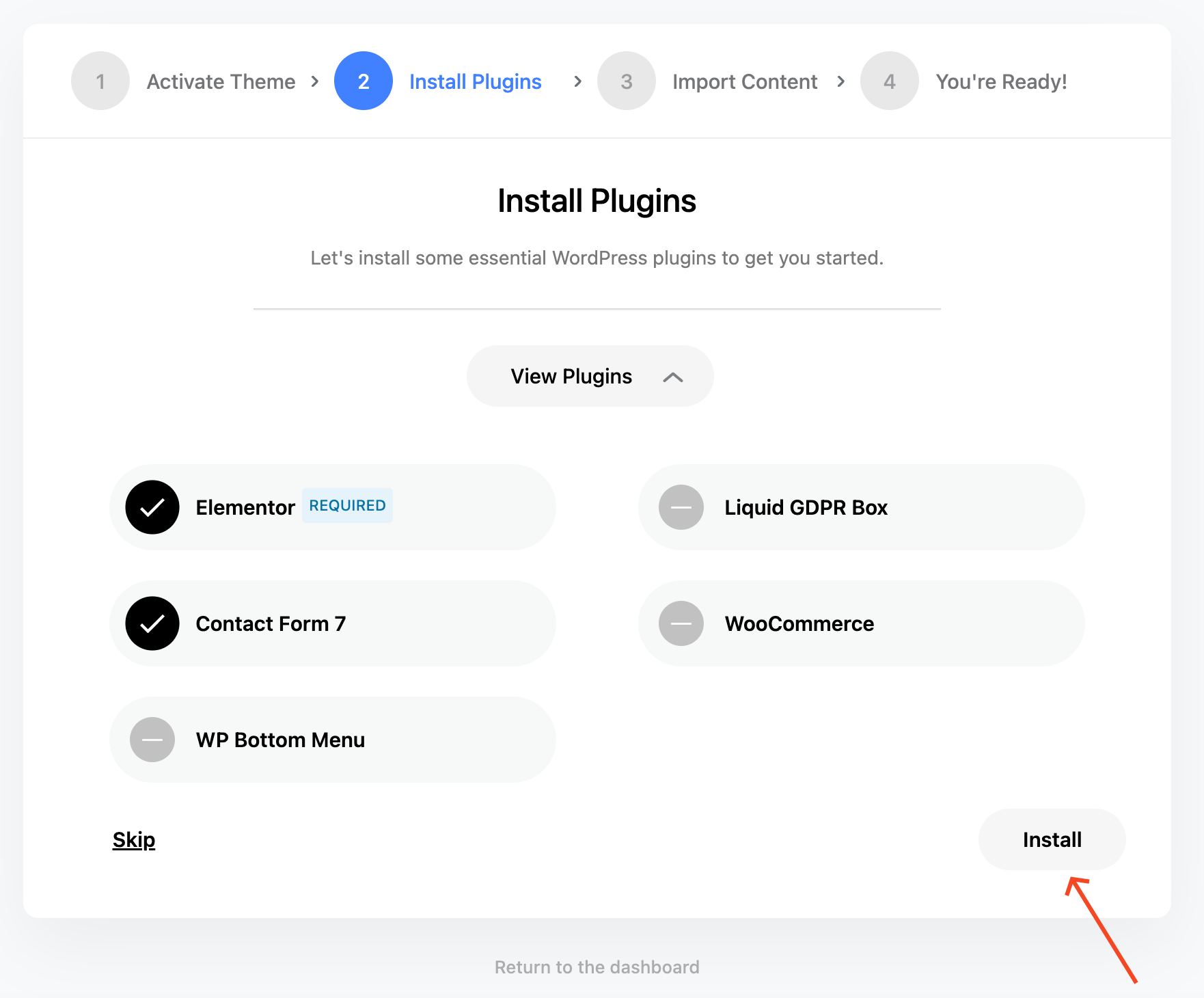 Note: If you have already installed the required plugins when you first install the theme, they will not appear here. So you just need to click Skip.
Select a demo you want and click the Import Demo button.
You can choose what to import from the demo import popup. After clicking the Import Demo button, the demo import process will start. Depending on the technical specifications of your server, the duration of this process may vary.