
Shortcodes Overview
BookingHub provides flexible shortcodes that allow you to embed essential booking features anywhere on your WordPress website. Simply copy and paste the shortcode into any page, post, or widget area to display the related functionality.
Booking / Reservation Forms
You can easily display any of your reservation forms using its unique shortcode.
To find the shortcode:
Go to BookingHub > Booking Forms in your WordPress admin panel.
Locate the form you want to use.
Copy the provided shortcode.

Paste it into any page or post where you want the form to appear.
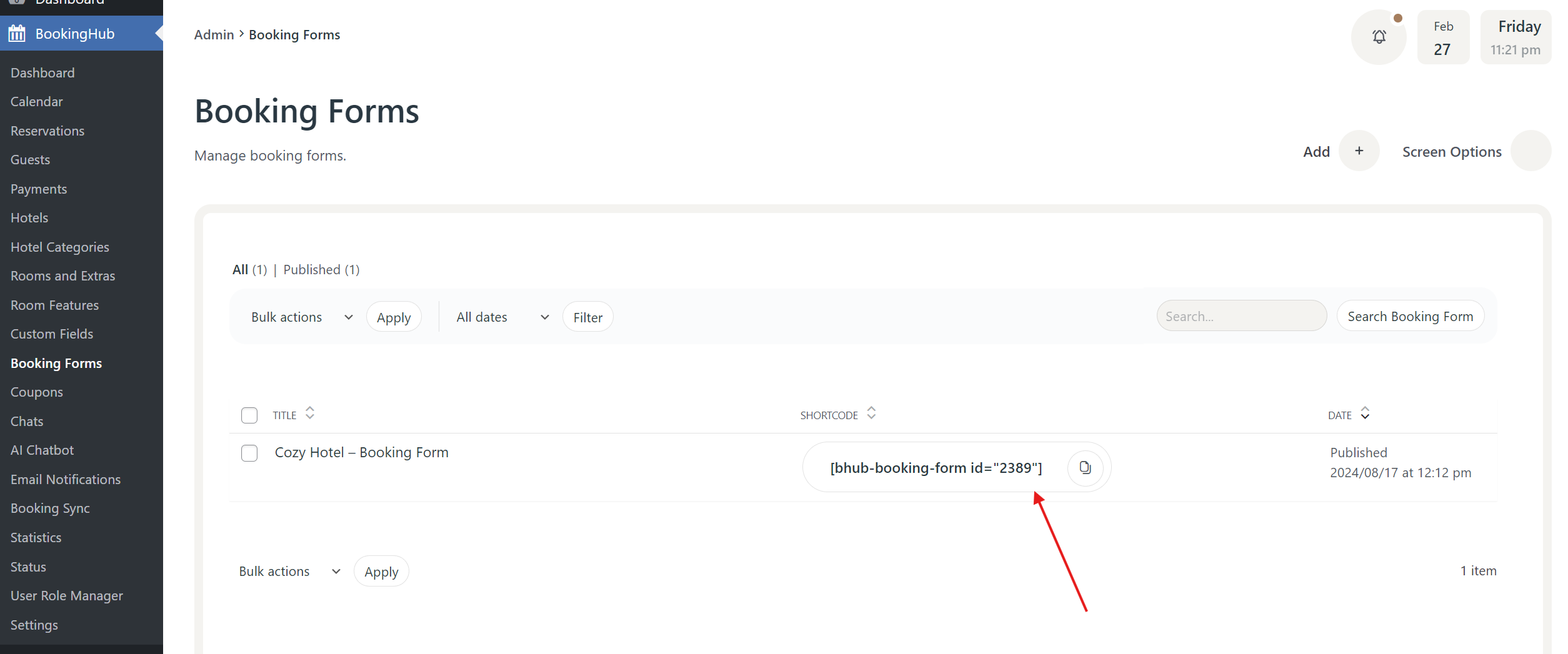
This allows you to place booking forms on landing pages, hotel pages, or any custom layout.
User Dashboard
You can embed the user dashboard directly into a page using the following shortcode:
[bhub-user-dashboard]
When added to a page:
Logged-in users will see their personal dashboard.
Guests (not logged in) will see a login prompt instead.
This is perfect for creating a dedicated “My Account” or “User Dashboard” page.
Manage Bookings
Allow users to manage their reservations directly from a page with this shortcode:
[bhub-user-booking-manage]
With this feature:
Users can enter their Booking ID.
They can view booking details.
They can modify or manage their reservation (depending on your settings).
This is ideal for creating a “Manage My Booking” page.
Login Form
If you need a standalone login form anywhere on your site, use:
[bhub-user-login]
This shortcode is useful for:
Custom login pages
Sidebar login sections
Landing pages requiring authentication
Using Elementor Instead of Shortcodes
Most of these features are also available as Elementor widgets.
If you are using Elementor:
Add the corresponding BookingHub element directly from the Elementor panel.
Customize its layout and design using Elementor’s styling options.
No need to manually paste shortcodes unless you prefer to.
If you’re building your site with Elementor, we highly recommend using the HotelHub Elementor widgets for better flexibility and design control.